
Trenchport RP HUD artwork
Trenchport, Alabama RP HUD Player Portal Player documentation and crafting tools hosted and maintained by Before Midnight Game Studio.
Trenchport RP HUD

HUD Help Guide

Use the menu guide below to learn what each major HUD section does. The screenshots match the current in-world layout, including custom meter status lines, universal character profiles, permanent titles, achievement announcements, optional Companionship and Intimacy progression, Trenchport Network browsing, Justice tools and OOC evidence submissions, phone contacts, combat, and the expanded Internet menus.

HUD Guide

Getting Started

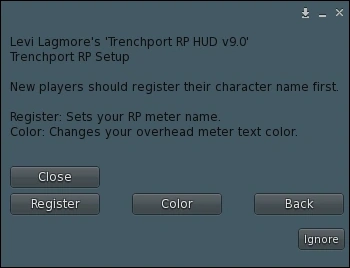
Start / RP Setup menu in the Trenchport RP HUD
Getting Started

Start / RP Setup

New players should use this menu before the other systems so the meter has the correct roleplay identity.

  • Register sets or updates the RP character name shown by the meter.
  • Color opens two pages of 18 overhead meter text colors.
  • Back returns to the main HUD menu.

Tip: Meter text colors now include White, Red, Green, Blue, Purple, Yellow, Orange, Cyan, Pink, Lime, Teal, Navy, Lavender, Gold, Brown, Gray, Maroon, and Magenta.

Back to top
HUD Guide

Character & RP

Current Character Profile menu with Status Line, Achievement, Stats, Chapters, My Profile, Titles, Social, New Profile, Browse Pros, and Browse All
Character & RP

Character Profile

The Character Profile menu combines the custom meter status line, automatic progression profiles, written character biographies, meter records, chapters, titles, achievements, and social progression.

  • Status Line opens the custom meter text shown beneath the equipped title. It can be used for a short roleplay note, current mood, work status, scent, injury, or availability.
  • My Profile displays the automatic system profile built from real Trenchport activity, including level, combat, fishing, bounties, Kitchen Rush, RP chapters, addictions, companionship, and equipped titles.
  • New Profile creates or updates the written character biography used by the public Network profile browser.
  • Browse Pros scans for nearby registered players. Browse All opens written profiles across the Trenchport Network.
  • Titles opens permanently unlocked progression titles and lets the player equip, clear, show, or hide the current title.
  • Achievement opens achievement-announcement settings. Social opens the optional Companionship system.
  • Stats displays saved meter and addiction information. Chapters displays RP writing totals and chapter progress.

Tip: The status line, equipped title, automatic system profile, and written character biography are separate. Changing one does not overwrite the others.

Back to top
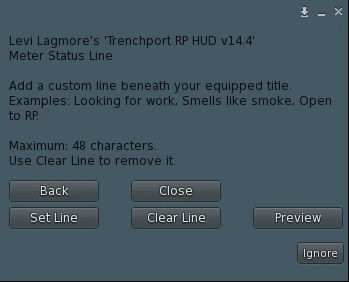
Meter Status Line menu with Set Line, Clear Line, Preview, Back, and Close controls
Character & RP

Meter Status Line

The Status Line adds a short custom roleplay note beneath the character’s equipped title on the overhead meter.

  • Set Line opens a text box for entering or replacing the saved status line.
  • Maximum Length is 48 characters, keeping the overhead meter readable around other players.
  • Clear Line removes the saved line from the character and meter.
  • Preview shows the currently saved status line without requiring another change.
  • Status lines can describe availability, work, injuries, mood, scent, or another brief roleplay detail, such as Looking for work, Smells like smoke, or Open to RP.
  • The line is saved to the character and returns after the HUD or meter reloads, resets, detaches, or reattaches.

Important: Use Trenchport RP HUD v14.4 with Meter v12.1 or newer so the status line saves, loads, and displays correctly.

Back to top
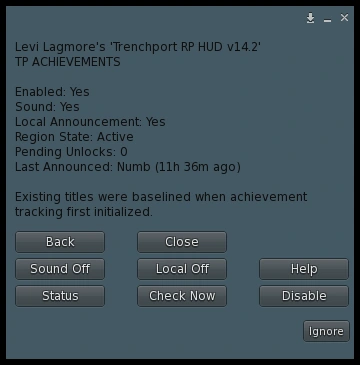
Trenchport Achievements menu with sound, local announcement, status, check now, and tracking controls
Character & RP

Titles & Achievements

Permanent titles reward long-term activity across Trenchport, while the Achievement module can announce newly unlocked titles in local chat.

  • Titles are earned through character levels, combat, fishing, bounties, Kitchen Rush, RP chapters, addiction classes, rehab, companionship, intimacy, and Justice progression.
  • Achievement opens the announcement module shown here. New unlocks can play a sound and post a local achievement message.
  • Sound On / Off controls the unlock sound. Local On / Off controls local-chat announcements.
  • Check Now asks the system to check for newly earned titles immediately. Status displays current module settings and any pending unlocks.
  • Disable turns achievement tracking off. It can be enabled again later without removing previously earned titles.

Tip: Existing titles are silently baselined when achievement tracking first initializes, preventing old unlocks from flooding local chat. Earned titles remain permanently unlocked.

Back to top
Trenchport Companionship Status menu showing Social Energy, style, Social Reputation, unique connections, and toggle controls
Character & RP

Companionship

Companionship is an optional social progression system that rewards active roleplay near other participating HUD users in Trenchport.

  • Social Energy is the changing short-term social meter. Active qualifying roleplay raises it, while extended time online and alone slowly lowers it after a grace period.
  • Social Reputation is permanent progression and does not drain. Unique Connections records distinct participating players met through qualifying roleplay.
  • Both nearby players must have Companionship enabled and use /me during the same qualifying 30-minute window.
  • Status displays the current energy, style, reputation, connections, point window, and next possible alone drain.
  • Disable toggles the system off. The module pauses outside Trenchport and can be enabled again later.

Tip: Social Reputation and unique connections remain saved. Social Energy has a protected minimum and cannot drain indefinitely.

Back to top
Current RP Tools menu with Contacts, Justice, Lure, Biz Advert, and Intimacy
Character & RP

RP Tools

RP Tools opens roleplay communication, public scene hooks, business adverts, Justice records, and the optional adult Intimacy module.

  • Contacts opens the Trenchport Phone system for saved contacts, inbox checks, and conversations.
  • Justice opens active cases, OOC evidence submissions, bail, fines, bond requests, bond fees, and community-service progress.
  • Lure creates or browses public roleplay hooks through the Network and Discord.
  • Biz Advert creates a business advert for the Network and Discord.
  • Intimacy opens the optional adult-only Intimacy module and its enable, disable, status, and help controls.
  • Back returns to the main HUD menu. Close dismisses the dialog.

Tip: Intimacy is opt-in and can be toggled off at any time from its own menu.

Back to top
Trenchport Intimacy Module menu showing enabled status, disable, status, help, and close controls
Character & RP

Intimacy

Intimacy is an optional adult-only progression module. It uses private mutual confirmation and scene duration without monitoring roleplay posts.

  • Both participating players must have Intimacy enabled, remain within approximately 0.5 meters for 10 continuous minutes, and privately confirm the scene.
  • The initial confirmation awards one Sex Addiction point and records one confirmed encounter.
  • A continued confirmed scene can award one additional point after each full hour, up to three hourly bonuses.
  • One uninterrupted scene lasting 3 hours and 10 minutes can therefore award four total points. Players may also reach the limit through several shorter confirmed encounters.
  • The daily maximum is four Sex Addiction points per player. Hourly bonuses add points but do not add extra encounters.
  • Status displays current participation and progression. Disable toggles the module off and prevents new prompts or progression until enabled again.

Privacy: Confirmation prompts are private. The system tracks consent, proximity, and elapsed scene time only; it does not inspect or require chat posts.

Back to top
Trenchport RP Lures menu in the Trenchport RP HUD with New Lure, Browse Lures, and My Lures
Character & RP

RP Lures

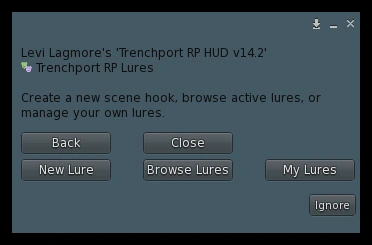
RP Lures help players create scene hooks and browse active lures in-world without needing Discord.

  • New Lure creates a new roleplay hook or scene prompt.
  • Browse Lures opens active public lures in-world.
  • My Lures lets you review and manage your own lure posts.
  • Back returns to the previous menu. Close dismisses the dialog.

Tip: Lures also appear inside the Trenchport Network browser under the Lures section.

Back to top
Trenchport Phone menu in the Trenchport RP HUD with Check Messages, Conversation, My Contacts, and Add Contact
Character & RP

Phone Contacts

The Trenchport Phone now combines saved contacts, saved conversations, and inbox refresh tools in one menu.

  • Check Messa manually refreshes the inbox right away instead of waiting for the next automatic check.
  • Conversation opens saved text conversations so players can look back through message history.
  • My Contacts shows saved contacts and lets you open message or remove actions.
  • Add Contact accepts an exact character name, SL username / legacy name, display name, or UUID.
  • Offline Delivery stores pending messages so they can appear when the recipient logs in wearing the HUD.

Tip: The HUD checks for messages automatically after attach and again on a timer. Check Messa is the manual refresh button.

Back to top
HUD Guide

Justice

Trenchport Justice menu with My Cases, Submit Evidence, bail, fines, bond requests, and help
Justice

Justice System

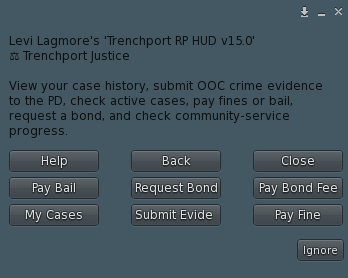
The player Justice menu lets you review active cases, submit OOC character-crime evidence to the PD, and handle eligible bail, fines, bail-bond requests, bond fees, and community-service progress.

  • My Cases displays active case numbers, charges, status, sentence time, bail, fine, bond information, and community-service progress.
  • Submit Evidence opens the guided OOC evidence form used to give PD players the information needed to begin an investigation involving your character.
  • Pay Bail pays eligible cash bail with Trenchport RP credits. Full payment places the case into the appropriate awaiting-release state.
  • Pay Fine makes a payment toward the case’s unpaid fine balance.
  • Request Bond creates a bail-bond request for an eligible active case.
  • Pay Bond Fee pays the remaining fee owed on a claimed or posted bond.
  • Help displays in-world Justice guidance. Back returns to RP Tools and Close dismisses the dialog.

Important: Paying bail or posting a bond does not automatically release the inmate. Police or Corrections must finish the Bail Release. Community service is separate from jail time and does not count as Time Served. Submitting OOC evidence does not automatically create a warrant, arrest, or criminal record.

Back to top
OOC Character Crime Evidence menu with Begin or Resume, Help, Back, and Close controls
Justice

OOC Evidence Submission

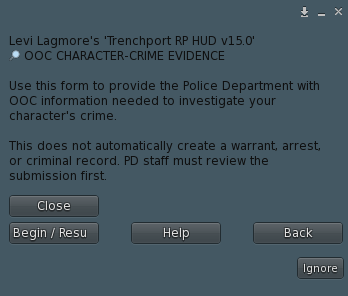
Use this guided form to provide OOC information about your character’s crime so PD players have the details and availability needed to begin an investigation.

  • Begin / Resume starts a new report or continues the current saved draft at the next unanswered question.
  • The questionnaire covers the character name, general RP availability, everyone directly involved, what happened, where it occurred, any Police, Fire, or Hospital RP already started, how police learned about it, available scene evidence, additional locations, other investigator notes, and whether the story is time sensitive.
  • Each answer is saved to the backend before the next question opens. Players receive 15 minutes for each step, and a visible timeout message confirms that saved answers remain in the draft.
  • After final confirmation, the system issues an evidence receipt and sends the completed report to the PD Evidence Inbox. A full copy of every question and answer is also archived in the department’s private Discord records channel.
  • Help explains the submission process. Back returns to Justice. Close exits the form while preserving answers that were already saved.

Important: This is an OOC coordination tool. A submission does not automatically create a warrant, arrest, case outcome, or criminal record. PD staff must review the information and decide how the investigation proceeds in character.

Back to top
HUD Guide

Combat

Updated Fight HUD menu with Attack, NPC Hunt, healing, combat modes, poses, and surrender
Combat

Fight HUD

The Fight menu contains player combat, NPC hunting, healing, RP stance, combat-status, surrender, and fight-callout tools.

  • Attack chooses Melee, Knife, or Gun and scans for an eligible nearby player target.
  • NPC Hunt scans for compatible Trenchport NPCs and opens the separate NPC combat flow.
  • Roll Rule uses one D20 roll. An 8 or higher hits; 1 through 7 misses.
  • Heal restores up to 25 HP to a nearby player when the HP guardrail allows it.
  • Pose toggles the Fight Stance for RP. Melee no longer turns an active stance off, and Knife or Gun restores it afterward.
  • Combat opens combat-status controls.
  • Callout posts a Discord message saying you are looking for a fight.
  • Throw Towel lets the player surrender to a nearby meter user, counting as a loss without dropping HP. It awards the opponent a win and has a 12-hour cooldown.
  • Help displays in-world combat guidance.

Tip: Player attacks and NPC Hunt are separate target flows. Damage and normal healing share a 10-second HP guardrail.

Back to top
Combat Modes menu showing Meter Combat, RP Combat, and Non Combative options
Combat

Combat Modes

This menu controls whether the character is participating in meter combat, RP combat, or non-combative status.

  • Meter Combat shows the HP bar and allows normal HUD attacks and incoming damage.
  • RP Combat marks the character as willing to roleplay fights while blocking meter damage.
  • Non Combative marks the character NON COMBATIVE and blocks meter damage.
  • Status confirms the current combat mode.
  • Back returns to the Fight menu.

Tip: The meter is the final authority for damage blocking. Wait for the status text overhead to update after switching modes.

Back to top
HUD Guide

Items & Crafting

Inventory menu in the Trenchport RP HUD
Items & Crafting

Inventory

The Inventory menu manages stored items and connects the HUD to the crafting system.

  • Inventory prints the current stored-item list.
  • Use Item lets the player consume a supported item and apply its effect.
  • Transfer sends a transferable item to a nearby player.
  • Craftable checks which recipes the character can currently make from owned ingredients.
  • Recipes Web opens the full searchable recipe website.
  • Help displays in-world inventory guidance.

Tip: The website shows every public recipe. Craftable is the player-specific check based on current inventory.

Back to top
HUD Guide

Economy

Updated Money and Credits menu with Loans in the Trenchport RP HUD
Economy

Money / Credits

This menu provides access to the Trenchport roleplay-credit economy, including the new credit-score loan system.

  • Loans opens Trenchport Loans for credit-score checks, applications, active-loan details, payments, and history.
  • Bounties opens player-funded contracts, wanted lists, personal bounty status, and posted contributions.
  • Stocks opens the Trenchport Stock Market.
  • Balance checks the current RP credit balance.
  • Daily handles the available daily credit claim.
  • Transfer sends RP credits to another nearby player.
  • Help displays money-system guidance.

Tip: These are Trenchport roleplay credits, not Linden Dollars.

Back to top
Trenchport Loans menu in the Trenchport RP HUD
Economy

Loans / Credit Score

Trenchport Loans lets players apply for RP credit loans, track their credit score, and make voluntary payments without automatic withdrawals.

  • Credit Score checks the current score and rating details used for loan eligibility and rates.
  • Apply shows the available loan offers the player currently qualifies for.
  • My Loan displays the active loan, remaining balance, due date, status, and repayment progress.
  • Make Payment allows partial payments or a full payoff using RP credits already in the bank.
  • History shows previous paid, overdue, defaulted, or settled loans.
  • Help explains the loan rules and credit-score system.

Tip: Only one unresolved loan is allowed at a time. Overdue and defaulted loans block new borrowing, but the system never auto-withdraws credits from a player.

Back to top
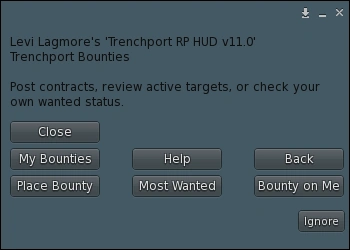
Bounty System menu in the Trenchport RP HUD
Economy

Bounty System

Bounties are player-funded combat contracts paid with Trenchport RP credits. The target does not need to be nearby or online when the contract is posted.

  • Place Bounty accepts an exact registered character name, Second Life username, unique display name, or avatar UUID.
  • Most Wanted shows up to ten players with the largest active bounty totals.
  • Bounty on Me checks your own active bounty total, contributions, and nearest expiration.
  • My Bounties lists your active contributions, fees, targets, and remaining time.
  • Contribution Rules require 2,500 to 250,000 credits per post. The active target cap is 2,500,000 credits, and the current setup uses no house cut.
  • Expiration occurs after 7 days. Expired principal is refunded, but the posting fee is not.
  • Claiming is automatic when a wanted player reaches 0 HP through normal HUD combat. The winner receives the active bounty; no claim button is needed.

Tip: Use the target’s exact SL username or UUID when a character or display name could match more than one player.

Back to top
Stock Market menu in the Trenchport RP HUD
Economy

Stock Market

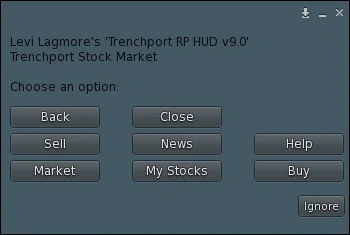
Use this menu to view and trade fictional Trenchport companies with RP credits.

  • Market displays current stock prices.
  • Buy purchases shares using available RP credits.
  • Sell sells owned shares.
  • My Stocks displays current holdings.
  • News displays market-related news or updates.
  • Help displays stock-market guidance.

Tip: Prices can move over time. Review the market and owned holdings before buying or selling.

Back to top
HUD Guide

Internet & Apps

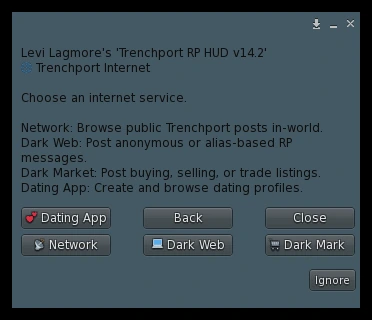
Internet menu in the Trenchport RP HUD with Dating App, Network, Dark Web, and Dark Mark
Internet & Apps

Internet

The Internet menu is the launcher for Trenchport’s public-posting and in-world browsing systems.

  • Dating App opens the dating-profile system for creating and browsing dating profiles.
  • Network opens the in-world browser for public Trenchport posts.
  • Dark Web opens anonymous or alias-based posting and browsing tools.
  • Dark Mark opens Dark Web marketplace listing tools.
  • Back returns to the main HUD menu. Close dismisses the dialog.

Tip: Use Network when you want to browse public posts in-world without creating a new one first.

Back to top
Trenchport Network browser menu in the Trenchport RP HUD
Internet & Apps

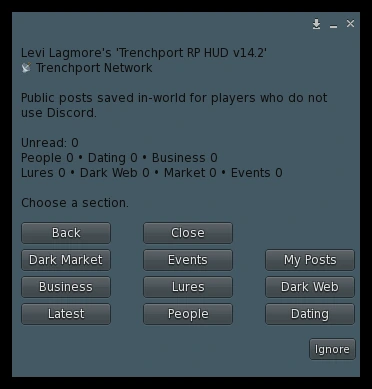
Trenchport Network

Trenchport Network is the in-world browser for public posts saved by the HUD systems.

  • Latest shows the newest public posts across supported categories.
  • People browses character profiles. Dating browses dating profiles.
  • Business browses business adverts. Lures browses roleplay hooks.
  • Dark Web browses anonymous posts. Dark Market browses marketplace listings.
  • Events browses event posts. My Posts opens your own saved public posts.

Tip: This browser exists so players who do not use Discord can still read the same public posting systems in-world.

Back to top
Trencher Dating App menu in the Trenchport RP HUD with New Profile, Browse Date, and My Profile
Internet & Apps

Dating App

The Trencher Dating App lets players create a dating profile and browse other profiles directly in-world.

  • New Profile creates or updates your dating profile.
  • Browse Date opens saved dating profiles in-world.
  • My Profile opens your own dating profile.
  • Back returns to the Internet menu. Close dismisses the dialog.

Tip: Dating profiles are saved in-world for browsing and can also be mirrored to Discord.

Back to top
Trenchport Dark Web menu in the Trenchport RP HUD with New Post, Browse Posts, and My Posts
Internet & Apps

Dark Web

Dark Web is the anonymous or alias-based post system for rumors, requests, and shady roleplay hooks.

  • New Post creates a new dark web entry.
  • Browse Posts opens active dark web posts in-world.
  • My Posts lets you review your own dark web posts.
  • Back returns to the Internet menu. Close dismisses the dialog.

Tip: Keep it IC and avoid OOC private information.

Back to top
Dark Web Marketplace menu in the Trenchport RP HUD with New Listing, Browse Mark, and My Listings
Internet & Apps

Dark Market

Dark Market is the listing system for buying, selling, trading, or looking for specific items and services.

  • New Listing creates a new dark market listing.
  • Browse Mark opens active marketplace listings in-world.
  • My Listings lets you review your own market posts.
  • Back returns to the Internet menu. Close dismisses the dialog.

Tip: Listings can be for buying, selling, trading, or trying to locate something in character.

Back to top
Apps menu in the Trenchport RP HUD
Internet & Apps

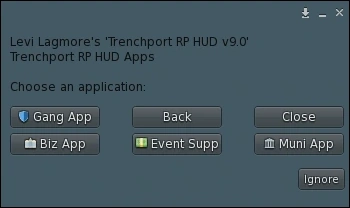
Apps

The Apps menu groups application and support forms used by Trenchport organizations and staff.

  • Gang App opens the gang application process.
  • Biz App opens the business application process.
  • Event Supp opens event-support options.
  • Muni App opens the municipal application process.
  • Back returns to the main HUD menu.

Tip: Application menus are separate from the public in-world browsing tools found under Internet and Network.

Back to top
HUD Guide

Emergency

Emergency / Tipline menu in the Trenchport RP HUD
Emergency

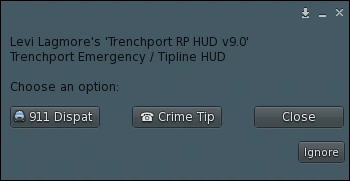
Emergency / Tipline

This menu provides fast access to emergency-roleplay reports and the crime tipline.

  • 911 Dispat starts an emergency dispatch report.
  • Crime Tip starts a crime-tip submission.
  • Close exits the dialog.

Tip: Use these tools for in-character Trenchport roleplay reports, not real-world emergencies.

Back to top
More Help

Troubleshooting

When a menu does not respond, close the dialog and reopen the HUD menu. Confirm the HUD and meter are both worn, use Reload when saved character data or the status line looks wrong, and use the in-world version/update tools if combat, Network browsing, credits, inventory, phone messages, or public posts remain out of sync.

Crafting recipes are maintained on the separate recipe page so the HUD does not need to load the complete recipe database into script memory.