

Bookings and investigations are kept in the cloud as permanent TPPD Justice cases. Incident Reports have their own TPIR record and can be escalated into a linked investigation when real follow-up is needed. Notes, custody actions, and later case updates preserve the history.
PD & Justice Staff Guide
New to PD? Start with Which Record Do I Make? and Booking an Arrest. Officers choose charges from the fixed cloud charge catalog through numbered, paginated menus; the Worker calculates the normal fine and sentence. This guide also explains when to file an incident report instead of opening an investigation, how to add follow-up notes, and how to handle custody. The Laws & Justice page is your reference for offense names, codes, fines, and standard time.
Justice roles share the same cloud case records
One permanent Justice history, shared across station terminals and field case intake.
Bookings, investigations, evidence submissions, warrants, custody, releases, resident lookup, and stacked case notes all connect through the same Justice records. The menu you open controls which actions are available to your saved role, but the case itself stays connected the entire time.
Officer TerminalThe shared station workstation for booking, case lookup, resident lookup, incident reports, investigations, evidence review, supervision, custody cases, notes, and verified releases.
Investigator ToolsInvestigators can use the same Officer Terminal and also keep their dedicated detective workflow for resident intelligence, case history, and investigation closure.
Supervisor ComputerSupervisors handle staff access, warrant administration, broader case changes, and other ADMIN-side Justice control.
Mobile HUDAuthorized field staff can open a new case away from the station using the same six-part investigation intake.
The two things to remember: (1) Routine arrests belong in Book Inmate, with an AUTO case or the correct existing TPPD-YYMMDD-### case. (2) Pick the actual offenses from the numbered cloud catalog: do not type your own charges, fine totals, or sentence totals. The Worker calculates those after you confirm the selection.

How the Police-side system is organized
TPPD identifies the Justice case; TPIR identifies an incident report; short codes such as TR001 identify predefined offenses. Never use a charge code as a case number. The Worker assigns new case and report numbers.
If a suspect is already in custody, booking or serving another linked case attaches it to the same custody episode. The cases stay separate, but custody time is enforced together using consecutive sentence totals.
OFFICER, INVESTIGATOR, and ADMIN / Supervisor access are separated by what they can actually do, even though they may work from the same connected Officer Terminal and the same underlying Justice case.
Quick role map: Officer = patrol, booking, and incident reports. Investigator = officer-plus casework and investigation closure. Supervisor / ADMIN = warrants, staff administration, and authorized case adjustments. For custody and verified release, use Custody Cases on the Officer Terminal instead of the old Corrections Desk.
Booking, Incident Report, or Investigation?
These three jobs are not interchangeable. Choose what happened in RP before touching the terminal.
1. Suspect arrested? Book Inmate.
Use Book Inmate for an arrest with a known suspect. Record the correct fixed charges and a factual arrest narrative. An ordinary completed arrest is an incident/booking, not a new open investigation that needs a detective to close. Use the existing investigation case number only if the arrest actually resolves that same earlier case.
2. Need to document a scene? Incident Reports.
Use Incident Reports > New Report for patrol calls, vandalism, disturbances, witness reports, and other events where you need a written TPIR record but are not booking someone. Later, escalate it if an investigation becomes necessary.
3. Unsolved crime or leads to work? Investigations.
Use Investigations > New Case for an unknown suspect, an unresolved serious crime, or real investigative work still needed. The cloud creates an open TPPD investigation; keep adding notes and suspects as evidence develops.
Simple example: You catch a driver fleeing, arrest them, and finish the scene: Book Inmate. You respond to graffiti but make no arrest: New Report. You find a shooting scene with no identified suspect and need witness interviews: New Case. Do not open an investigation for every routine arrest.
How to book someone after an arrest
Once the arrest RP is complete and the suspect is ready for intake, use the in-world Officer Terminal. The website is only a law reference; officers do not enter bookings on the website.
- Confirm the correct player. Choose Book Inmate, then select the nearby avatar or search the registered resident. Double-check the character before saving charges to their record.
- Choose the right case. Use AUTO when this arrest needs its own new case. If there is already a TPPD investigation for this same offense, use its exact existing TPPD-YYMMDD-### number. Do not enter an unrelated case number or make one up.
- Select charges from the catalog. Browse the numbered categories/pages, read the charge names and codes shown in local chat, and choose the correct numbered option. Add every distinct, supported offense involved in the arrest using the terminal's multi-charge workflow. Use the catalog, not a free-typed list.
- Review your selection. Check the offense names, number of charges, and the standard fine/custody totals that the system calculates. Remove or correct a wrong selection before final confirmation. Do not guess the sentence or fine yourself.
- Finish the arrest details. Provide the required incident/arrest information and a clear factual narrative when prompted. State where the arrest occurred, what the suspect actually did, what the officer observed, and why each charge applies.
- Save and verify. Complete the terminal confirmation, then check the returned TPPD number and custody record. A routine, fully documented booking should be treated as a completed incident, not left as an investigation needing follow-up. Use Lookup Case or Custody Cases to review it.
Before you hit confirm: Is it the right inmate? Is AUTO or the correct existing case selected? Are the charges supported by the RP and free of duplicates? Is the narrative understandable to an officer who was not at the scene?
Already in jail? If officers discover omitted charges from the same arrest, look up the existing case and use the authorized charge-edit/correction workflow if available. Record why the change was made; ask a Supervisor if your role cannot make the correction. Do not book the same arrest twice just to add missing charges. A different criminal incident may need its own case and can share the same custody episode.
How the hardcoded charge picker works
The charge list is predefined in the cloud and used by the in-world booking terminal. Each offense has a code, charge name, standard fine, and standard custody time. The terminal uses numbered, paginated choices: match the number shown in the dialog to the offense printed in your local chat, and navigate the categories/pages as needed. Search the lawbook when you are unsure which code fits your scene.
Select the actual catalog entry, such as TR001 — Aggravated Eluding or TR002 — DUI, only when the RP supports that charge. Codes belong to charges, not case numbers.
Add more than one charge when the suspect committed separate supported acts. Do not stack minor and aggravated versions of the same act merely to increase punishment.
Every selected charge contributes its full listed fine. The Worker totals the credits. Citation-only charges have no jail time on their own.
For multiple qualifying charges: longest standard sentence + 25% of each additional sentence, rounded once to the nearest 60 minutes. The Worker handles the calculation and saves it.
Example (two distinct offenses): Aggravated Eluding (TR001: 7,200 minutes / 5,000 credits) plus DUI (TR002: 2,880 minutes / 2,000 credits) results in 7,920 minutes (7,200 + 25% of 2,880) and 7,000 credits in standard fines. You select the two charges; you do not type 7,920 or 7,000 into the booking.
The Charging & Fine Rules page covers attempts, overlapping offenses, restitution, and adjustments. Only authorized Justice staff or a judge should make permitted later changes for motions, pleas, or exceptional circumstances. Bail, fines, sentence time, and release eligibility are separate things.
How to write Incident Reports and open Investigations
Incident Report (TPIR)
From Officer Terminal > Incident Reports > New Report, enter the requested report details and describe the scene. Save the assigned TPIR number. Use Search / Open Report to add follow-up and Escalate when the incident genuinely needs a linked investigation.
Investigation (TPPD)
From Officer Terminal > Investigations > New Case, complete the six intake items: reporting party, reporting-party UUID (or NONE), location, incident date/time, complaint or offense, and initial narrative. The cloud assigns the TPPD number. Add suspects, interviews, evidence, and notes as the case progresses.
Booking / Arrest narrative
Use the catalog to pick formal charges, then explain the supporting behavior in the booking narrative. Text in a report's complaint field is not a substitute for selecting actual charge codes during booking.
Later developments
Use Lookup Case, Investigations, or the report browser to append notes to the original record. If an investigation leads to arrest, book against that existing TPPD case rather than opening an unnecessary duplicate.
Write the facts, not just the charge names. Include who was involved (or UNKNOWN), the date/time and place, what happened in order, which actions you personally witnessed, relevant witnesses or evidence, and what the officer did. Separate known facts from suspicions. Example: “At 9:15 PM outside QuickStop, I observed the driver ignore an instructed stop and accelerate toward the east road. After the vehicle stopped, the driver exited and was placed under arrest. Witness A remained at the scene.” That is much more useful than “Suspect fled. Arrested. Eluding.”
Keep the record type accurate: TPIR = incident report; TPPD open investigation = unresolved police work; TPPD booking/incident = arrested suspect and recorded charges. Do not leave closed-out arrest scenes marked as active investigations just because a case number exists. If an existing investigation still has unresolved leads, document the booking and continue the appropriate follow-up instead of closing it prematurely.
Officer Terminal
The Officer Terminal is now the shared station-side Justice workstation. Officers use it for patrol arrests, case lookup, resident lookup, incident reports, evidence review, open investigations, supervision, custody-case review, verified release handling, and permanent notes. Investigators can also use this same terminal when they need booking-side or custody-side access in addition to their detective workflow.
- The old separate Corrections Desk is no longer the normal workflow. Open Custody Cases from the Officer Terminal instead.
- The booking charge picker uses fixed cloud offenses and lets you select multiple valid charges. Do not manually calculate the fine or sentence or type your own formal charge list.
- Use AUTO for a new arrest case. If this arrest resolves an existing investigation, book against that case number instead. Routine completed arrests are incidents, not open investigations.
- If the inmate is already in custody on another case, the additional case attaches to the same custody period and its sentence is enforced with the combined custody total.
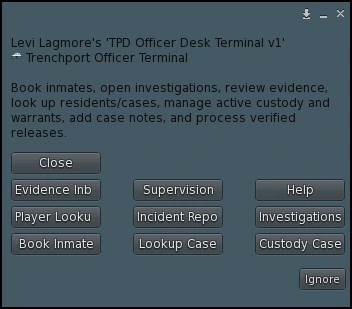
Officer Terminal menu flow and the key Justice workflows
These screenshots help you recognize the main terminal branches. Some screenshots may show an earlier step before the new numbered charge catalog; use the live terminal prompts for the latest picker and confirmation sequence. Full names, offense choices, and record details may print in local chat while short numbered buttons handle the selection. Follow-up work belongs on the existing case whenever possible.
Main Menu
Start from the shared Officer Terminal
Everything branches from here: Book Inmate, Player Lookup, Incident Reports, Investigations, Evidence Inbox, Lookup Case, Custody Cases, and Supervision.
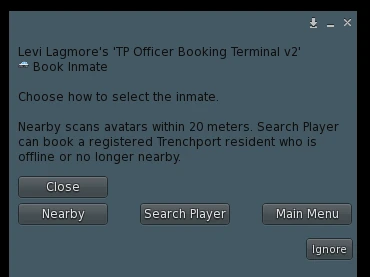
Book Inmate
Pick a suspect, case, and fixed charges
Choose the correct player and AUTO or a related existing TPPD case. Then use the numbered/paginated cloud charge picker, select all supported separate offenses, review totals, and complete the narrative before confirming. Full booking walkthrough.
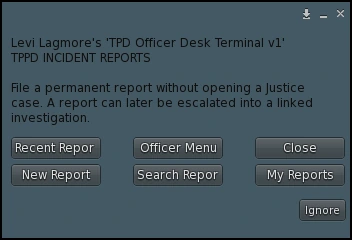
Incident Reports
Document the scene without arrest
Use New Report for calls that need a TPIR record but no booking or detective case yet. Add clear details and reopen the report later; escalate only when further investigation becomes necessary.
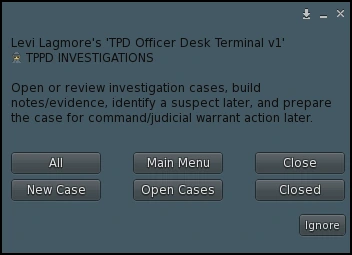
Investigations
Investigate unresolved crimes
Choose New Case for a crime that still needs follow-up, and complete the six-part intake. The cloud assigns the TPPD case number. Open Cases lets you continue notes, suspects, evidence, and warrant preparation.
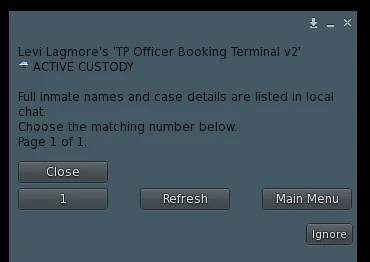
Custody Cases
Manage active inmates and warrants
Open current custody or warrant-linked cases from a numbered list. Once the case is open, staff can review the status, add notes, serve an existing warrant after arrest, and process verified releases when the workflow allows it. If the inmate has multiple attached cases, release requirements apply across the combined custody.
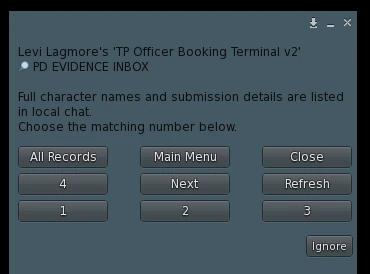
Evidence Inbox
Review player submissions first
Evidence records appear in a numbered picker. Review the report details in local chat, then open the submission and create or link the right Justice case if the report is accepted. Because the submission is OOC evidence, manually enter only what your character has actually learned through RP.
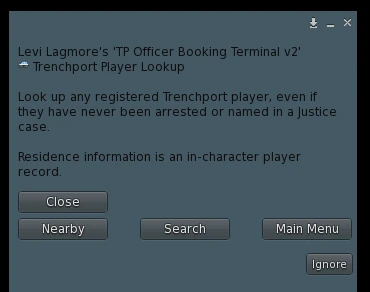
Player Lookup
Search the resident before the case
Use Nearby or Search to load a saved resident record, check current and previous addresses, and bridge directly into case history or the latest linked Justice record.
Important: the charge code (example: TR001) is not the case number (example format: TPPD-YYMMDD-###). Investigation intake generates a case number, booking uses AUTO or a related case number, and booking charges come from the preset catalog. See which type of record to make.
Investigator tools and the shared Officer Terminal
The dedicated Investigator Terminal is still built for detective work, but Investigators are no longer locked out of normal station workflow. An active INVESTIGATOR or ADMIN staff member can use the same Officer Terminal for booking-side and custody-side tasks, then return to the dedicated investigation tools when deeper casework is needed.
Investigator limits: Investigator access is not a Supervisor shortcut. Investigators can use the Officer Terminal and close investigations, but they do not gain staff administration, warrant issuance, sentence/bail/fine changes, or other ADMIN-only Justice control simply by holding the Investigator role.
Player Lookup & Residential Address History
Player Lookup is available where staff actually need it. Officers can reach it from the shared Officer Terminal, and Investigators still have it inside their detective workflow. That gives police staff a character-first starting point before they ever open or modify a case.
Numbered local selection
Scan nearby avatars, print their full names privately in local chat, then choose the matching number from the dialog.
Find people who are not nearby
Search registered residents by character name, display name, username, or full Second Life UUID.
Persistent residential record
View the character's current saved Trenchport address, the address update time, and the number of prior addresses stored in cloud history.
Previous residences
Browse paginated previous-address history so a moved character's older residence is not lost from investigative context.
Cases, investigations and warrants
Player Lookup can show Justice case count, open-investigation count, open-warrant count, latest case and status, and last known region when available.
Move from person to record
From a loaded resident, open that player's permanent case history or jump directly to the latest Justice case.
Supervisor / ADMIN Justice Computer
The Supervisor computer retains the broad Justice administration role. ADMIN staff can perform core booking and lookup work while also managing warrants, staff access, evidence, case administration, and authorized release functions.
ADMIN access: the Supervisor / ADMIN role is the broad department authority. It can access the Investigator workflow too, so supervisors can review or continue investigative work without changing their saved staff role.

Staff Access: Nearby Scan or Direct UUID
Justice staff no longer have to be standing next to the Supervisor Computer to be added. ADMIN users can still use the nearby scan, or choose Add UUID and enter the person's full Second Life UUID directly.
Add Nearby
Scan nearby avatars, print full names privately in local chat, select the matching number, then choose the Justice role.
Add UUID
Paste the staff member's full Second Life UUID when they are offline, away from the station, or simply not within scan range.
Supported Roles
ADMIN, JUDGE, LAWYER, OFFICER, INVESTIGATOR, and CORRECTIONS are still available from Staff Access if your department uses them.
List / Remove Staff
Review the saved staff roster and remove access through the same Supervisor staff-management system.
Security reminder: access is based on the saved Justice staff role, not merely on owning a terminal or wearing a group tag. Use the role that matches the job the character is actually authorized to perform.
Justice Mobile HUD: open a new case away from the station
The Justice Mobile Records HUD can open a brand-new investigation from the field when an unresolved crime needs work. Use the station Officer Terminal for a routine arrest booking and its fixed-charge picker; do not open a mobile investigation merely to document an ordinary arrest.
Who can use it
OFFICER, INVESTIGATOR, and ADMIN can see the New Case button on the Mobile HUD.
What it asks for
The same six-part intake is used: reporting party, UUID or NONE, incident location, incident date/time, complaint/offense, and initial narrative.
Case number behavior
When the field case is confirmed, the cloud saves it as an open investigation and auto-generates the native TPPD case number automatically.
What it does not do
The Mobile HUD opens new cases and looks up records, but it is not a full mobile booking or mobile release terminal.
Field reminder: a mobile case uses the same permanent Justice history as a station-created case. Notes, suspects, evidence links, warrants, and later closure all stay on the same record.
Warrants, evidence, and investigation follow-up
Document a scene without filing a booking
TPIR reports preserve patrol calls and other scenes when no one is booked. Escalate the TPIR to a linked Justice investigation when there is real unresolved work. An arrest with a known suspect belongs in Book Inmate instead.
A case can begin before a suspect is known
Investigations can be opened with the incident, reporting party, location, complaint, and initial narrative while the suspect is still unknown. The case number is generated automatically when the investigation is created.
Keep adding progress to the same case
Add interviews, surveillance, scene findings, evidence follow-up, officer observations, and other investigative actions as permanent notes instead of waiting until the end of the case.
Identify the suspect later without creating a second case
When a suspect is identified, add or correct the suspect on the same permanent Justice case instead of creating a disconnected record. The same case can later support a warrant, booking, custody, and release.
Review first, act second
Player crime reports are OOC evidence submissions. They do not automatically create an arrest, warrant, or conviction. Authorized PD staff review the submission, then manually place only IC knowledge into the linked Justice case.
Wanted status does not start custody time
An authorized warrant can flag a character as wanted without starting their sentence. The warrant is served after the actual arrest and remains part of permanent case history.
Case notes stack — they do not replace each other
Justice notes build a lasting cloud audit trail. Officer, Investigator, and Supervisor updates append to case history instead of replacing the older note.
Officer notes
Add arrest circumstances, the facts supporting each selected catalog charge, witness contact, and scene follow-up as soon as it happens. Do not use a note to replace the actual charge selection.
Investigator notes
Add interviews, leads, self-assignment, suspect development, evidence follow-up, and other investigative progress.
Custody, corrections, and release
Document additional evidence, corrected omitted charges (with authorized case editing), time-served verification, bail, warrant service, and release processing. Never duplicate-book the same arrest to fix a charge mistake.
Suspects & case numbers
Use the case-number correction workflow only for proper TPPD-YYMMDD-### values, and update the suspect field on the same case as the investigation develops instead of opening duplicate cases.
Workflow tips for smoother Justice RP
1. Pick the right record
Arrest = Book Inmate. Scene to document, no booking = Incident Report. Unknown suspect or case still being worked = Investigation.
2. Select the fixed charges
Use the terminal's numbered category and charge pages. Add distinct supported offenses, verify each code/name, and let the Worker calculate the standard fine and custody time.
3. Use AUTO or the real case
Use AUTO for a new booking, an existing TPPD number for the same prior case, or New Case for unresolved investigations. Do not invent numbers or substitute offense codes.
4. Explain the facts
Record who, what, when, where, what you witnessed, and the reason each charge fits. Add notes and evidence to the same case instead of making duplicates for every update.
5. Fix errors on the existing record
If charges were missed during an arrest, have an authorized officer or Supervisor edit/correct the original case and explain the addition. Do not book the same arrest a second time.
6. Finish custody work carefully
When time served or release eligibility is confirmed, make sure an authorized user actually completes the release workflow. If the inmate has multiple attached cases, make sure all custody requirements are satisfied before release.